
What the problem looks like
This issue often appears as a reminder problem, even though the real cause is the invoice status inside Xero.
Reminders are turned on, but nothing is being sent
Businesses often notice that overdue reminders are enabled in Xero, yet customers are not receiving them and no automatic follow-up is happening.
Overdue follow-up becomes manual
Without reminder automation, invoices can sit unpaid longer than they should and staff may need to chase them manually.
The reminder settings may not be the real issue
If the invoice is still unsent in Xero, reminders may not run even when the reminder setup itself looks correct.
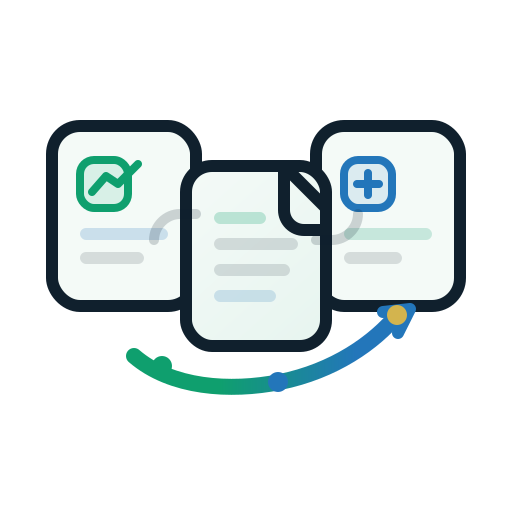
The invoice was first sent from ServiceM8
- The customer receives the first unpaid invoice from ServiceM8.
- The job or invoice is later approved into Xero.
- Xero may still keep that invoice in an unsent status.
- When that happens, Xero reminders and related automations may not run as intended.
Xero may need the invoice treated as sent
In this workflow, the problem is not necessarily that Xero reminders are configured incorrectly. The problem may be that the invoice is still considered unsent in Xero, which can stop reminder automation from continuing normally.
What to check first
Before changing your reminder settings, check the invoice path and the invoice status in Xero.
Was the invoice only emailed, or also approved to Xero?
Emailing an invoice from ServiceM8 on its own does not complete the Xero side of the workflow. Approval or export into Xero is the key step.
Does the invoice exist in Xero?
If the invoice has not appeared in Xero yet, reminder automation cannot act on it there.
Is the invoice still showing as unsent in Xero?
If so, that is a strong sign that reminder automation may be blocked by invoice status rather than reminder settings alone.
Is your workflow starting in ServiceM8?
This page is most relevant when the first customer-facing invoice send happens in ServiceM8 and Xero is used later in the workflow.
Built for this ServiceM8-to-Xero handoff
Xero Auto-Sent is designed for businesses that want to keep sending the initial unpaid invoice from ServiceM8 while still helping Xero reminders run afterwards. For eligible invoices, it helps close the sent-status gap so reminder follow-up is more likely to keep moving.
Not every reminder issue is the same
If your workflow does not start in ServiceM8, or if the invoice is already shown as sent in Xero, your reminder issue may have a different cause. In those cases, start with your broader Xero setup and reminder configuration review.
Next step
See whether this is the missing link in your reminder workflow.
If your invoices are first sent from ServiceM8 and later approved into Xero, review the main Xero Auto-Sent page to see how the add-on helps Xero reminders run with less manual chasing.
Need help?
Still not sure why reminders are not running?
Use the troubleshooting guide first, or contact support if you want help checking whether the workflow matches this specific ServiceM8 to Xero scenario.